
Selenium has been the go-to browser automation tool for over 15 years. It is powerful, widely supported, and free. But if you have spent any time writing Selenium scripts, you know the frustration: brittle selectors, flaky tests, complex setup, and hours lost to debugging.
That is why "selenium alternative" is one of the most searched automation terms on the internet. Developers and non-developers alike want browser automation that actually works without constant maintenance.
Why People Look for a Selenium Alternative
Selenium earned its place as the industry standard, but it comes with well-known problems:
Brittle Selectors
Selenium finds elements using CSS selectors or XPath expressions. When a website changes its HTML structure — even slightly — your selectors break. A developer renames a CSS class, adds a wrapper div, or reorders elements, and suddenly your entire automation fails.
This is the number one complaint from Selenium users. You spend more time fixing broken selectors than building new automations.
Complex Setup
Getting Selenium running requires multiple pieces: a programming language runtime (Python, Java, JavaScript), the Selenium library, a browser driver (ChromeDriver, GeckoDriver) that must match your browser version, and often a virtual display for headless execution. Version mismatches between the browser and driver are a constant source of "it works on my machine" problems.
Slow Execution
Selenium communicates with the browser through the WebDriver protocol, which adds latency to every action. For simple tasks, this overhead is noticeable. For large test suites, it adds up to minutes or hours of wasted time.
No Built-in Waiting
Modern websites load content dynamically. Selenium's basic find_element call does not wait for elements to appear — it fails immediately if the element is not in the DOM. You have to manually add explicit waits, implicit waits, or fluent waits to handle timing. Getting this right is an art form that frustrates even experienced developers.
Verbose Code
Even simple tasks require many lines of code. Opening a page, finding an element, waiting for it, clicking it, and handling errors adds up quickly.
The Modern Selenium Alternative Landscape
The good news: several tools have emerged that address Selenium's weaknesses. Here are the three most relevant options, from most technical to most accessible.
Playwright
Playwright is Microsoft's browser automation library. It solves many of Selenium's technical problems:
- Auto-waiting — Playwright automatically waits for elements to be visible and actionable before interacting with them
- Better selectors — Supports text-based selectors like
text="Submit"and role-based selectors likerole=button[name="Submit"] - Faster execution — Uses the Chrome DevTools Protocol instead of WebDriver, reducing latency
- Built-in browser management — Downloads and manages browser binaries for you, eliminating version mismatch issues
Playwright is an excellent selenium alternative for developers who want a better programming experience. But it still requires writing code in Python, JavaScript, Java, or C#.
Flyto2
Flyto2 takes a different approach entirely. Instead of giving you a better programming library, it removes the need to program at all. You write workflows in simple YAML, or describe what you want in plain English and let an AI agent build the workflow.
Under the hood, Flyto2 uses Playwright for browser control — so you get all the technical benefits — but wraps it in an interface that anyone can use.
Comparison: Selenium vs Playwright vs Flyto2
| Feature | Selenium | Playwright | Flyto2 |
|---|---|---|---|
| Programming required | Yes | Yes | No |
| Languages supported | Python, Java, JS, C#, Ruby | Python, JS, Java, C# | YAML + natural language |
| Auto-waiting | No (manual waits) | Yes | Yes |
| Browser management | Manual (driver downloads) | Automatic | Automatic |
| Selector resilience | Low (CSS/XPath) | Medium (text/role selectors) | High (AI-powered) |
| Setup time | 30-60 minutes | 10-15 minutes | 2 minutes |
| Execution speed | Slow (WebDriver protocol) | Fast (CDP) | Fast (Playwright-based) |
| Cross-browser | Yes | Yes (Chromium, Firefox, WebKit) | Yes (Playwright-based) |
| AI assistance | No | No | Yes (builds workflows from descriptions) |
| Best for | Testing teams with dev resources | Developers wanting modern API | Anyone automating browser tasks |
| Cost | Free | Free | Free |
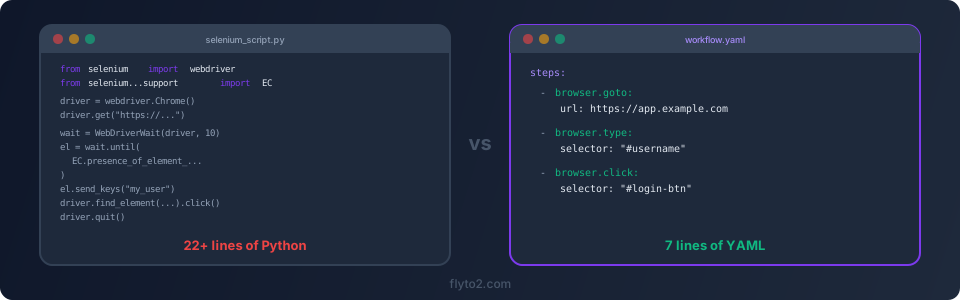
The Same Task: Three Ways
Let us compare how each tool handles a simple task: log into a website, navigate to a reports page, and click the download button.
Selenium (Python) — 22 Lines
from selenium import webdriver
from selenium.webdriver.common.by import By
from selenium.webdriver.support.ui import WebDriverWait
from selenium.webdriver.support import expected_conditions as EC

driver = webdriver.Chrome()
driver.get("https://app.example.com/login")

wait = WebDriverWait(driver, 10)

username = wait.until(EC.presence_of_element_located((By.ID, "username")))
username.send_keys("my_user")

password = driver.find_element(By.ID, "password")
password.send_keys("my_pass")

driver.find_element(By.ID, "login-btn").click()

wait.until(EC.url_contains("/dashboard"))
driver.get("https://app.example.com/reports")

download = wait.until(EC.element_to_be_clickable((By.CSS_SELECTOR, ".download-btn")))
download.click()

driver.quit()
That is 22 lines, and it does not include error handling, driver setup, or retry logic. In a real project, this easily doubles.
Playwright (Python) — 13 Lines
from playwright.sync_api import sync_playwright

with sync_playwright() as p:
    browser = p.chromium.launch()
    page = browser.new_page()
    page.goto("https://app.example.com/login")
    page.fill("#username", "my_user")
    page.fill("#password", "my_pass")
    page.click("#login-btn")
    page.wait_for_url("**/dashboard")
    page.goto("https://app.example.com/reports")
    page.click(".download-btn")
    browser.close()
Cleaner. Auto-waiting eliminates the explicit wait boilerplate. But you still need Python installed, and selectors can still break.
Flyto2 (YAML) — 7 Lines
steps:
  - browser.goto:
      url: https://app.example.com/login
  - browser.type:
      selector: "#username"
      text: "${USERNAME}"
  - browser.type:
      selector: "#password"
      text: "${PASSWORD}"
  - browser.click:
      selector: "#login-btn"
  - browser.goto:
      url: https://app.example.com/reports
  - browser.click:
      selector: ".download-btn"
Seven steps, each one a plain-English instruction. No imports, no driver management, no wait logic. Flyto2 handles auto-waiting, browser lifecycle, and error recovery automatically.
Or skip YAML entirely and tell Flyto2 in natural language:
"Log into app.example.com, go to the reports page, and download the report."
The AI agent generates the workflow for you.
When to Use Selenium
Despite its frustrations, Selenium remains the right selenium alternative to... nothing, in certain scenarios:
- Large existing test suites. If your team has thousands of Selenium tests, migrating is expensive. Stick with Selenium and improve it incrementally.
- Specific browser/OS matrix testing. Selenium Grid supports running tests across many browser and OS combinations simultaneously. This is hard to replicate elsewhere.
- Language-specific requirements. If your CI/CD pipeline is tightly integrated with a specific language ecosystem, Selenium's broad language support is an advantage.
When to Choose a Selenium Alternative
Switch to something else when:
- You are starting fresh. There is no reason to choose Selenium for a new project in 2026. Playwright is a better developer tool, and Flyto2 is better for non-developers.
- Selector maintenance is killing you. If you spend more time fixing broken selectors than building new automations, Flyto2's AI-powered selectors will save you hours every week.
- Your team is not all developers. QA analysts, operations staff, and business users cannot maintain Selenium scripts. Flyto2's YAML workflows and natural language interface let non-developers build and modify automations independently.
- You need fast results. Setting up Selenium properly takes an afternoon. Flyto2 takes two minutes. For one-off automations or quick tasks, the setup time matters.
- You want browser automation, not just testing. Selenium was designed for testing. If you want to automate real tasks — downloading files, filling forms, monitoring websites — Flyto2 is purpose-built for that.
Migrating from Selenium to Flyto2
If you are ready to try Flyto2 as your selenium alternative, the transition is straightforward:
- Identify your most-maintained scripts. Start with the Selenium scripts that break most often and require the most maintenance.
- Describe the task, not the implementation. Instead of translating Selenium code line by line, describe what the workflow should accomplish. Flyto2's AI agent will find the best approach.
- Test side by side. Run both the old Selenium script and the new Flyto2 workflow to verify they produce the same results.
- Migrate gradually. You do not need to switch everything at once. Use Flyto2 for new automations and migrate existing ones as they need maintenance.
Flyto2 for Developers: The Python API
If you are a developer who wants more control, Flyto2 also offers a Python API. You get the convenience of pre-built modules with the flexibility of code:
from flyto_core import execute

result = execute("browser.goto", url="https://example.com")
result = execute("browser.extract", selector=".price", field="text")
This gives you a middle ground between Selenium's verbosity and YAML's simplicity. Use Python when you need conditional logic, loops, or data processing — and Flyto2 modules for the browser interactions.
Try Flyto2
Whether you are a developer tired of maintaining Selenium scripts or a non-developer who needs to automate browser tasks, Flyto2 is a practical selenium alternative that works out of the box.
- Website: flyto2.com
- Documentation: docs.flyto2.com
- Source code: github.com/flytohub/flyto-core