
What if automating your browser was as simple as doing the task once? That is the idea behind record and replay — you perform a task while the tool watches, and then it repeats the exact same steps whenever you want.
What Is Record and Replay?
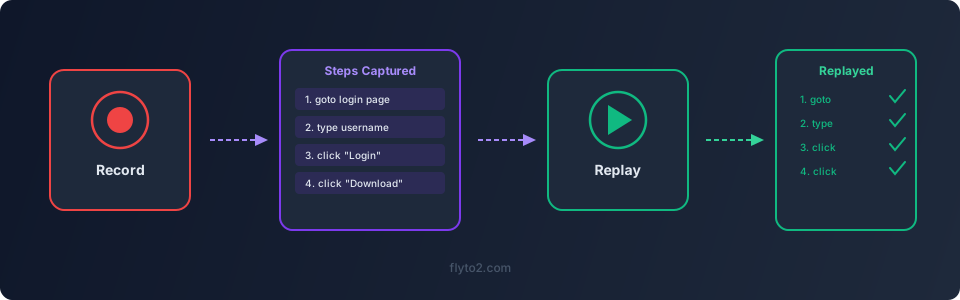
Record and replay is an approach to browser automation where you do not need to write instructions or configure anything. Instead, you:
- Record — Start a recording session and do your task normally in the browser. Click buttons, type text, navigate pages — just do what you always do.
- Replay — When you need to do the same task again, hit play. The tool repeats every action you recorded, in the same order, at the right speed.
It is like a macro recorder for your web browser. No programming, no flowcharts, no technical setup. If you can do the task manually, you can automate it with record and replay.
Why Record and Replay Is So Effective
Most automation tools ask you to think about your task in an abstract way — define steps, choose actions from menus, configure parameters. That works, but it requires a different kind of thinking than actually doing the task.
Record and replay removes that gap. You already know how to do the task — you do it every day. The tool just watches and learns from you. This makes it:
- Accessible to everyone — No technical skills needed
- Fast to set up — The recording takes exactly as long as doing the task once
- Accurate — The tool captures what you actually do, not what you think you do
- Easy to update — If the process changes, just record it again
When to Use Record and Replay
This approach works best for tasks that are:
- Consistent — The steps are the same every time
- Browser-based — Everything happens in a web browser
- Repetitive — You do the task regularly (daily, weekly, monthly)
- Moderate complexity — Between 5 and 50 steps
Here are some perfect use cases:
- Weekly report downloads — Navigate to a dashboard, set filters, click export
- Form submissions — Fill out the same type of form with different data
- System checks — Log into a portal, verify a status, log out
- Content updates — Edit a web page, change specific text, publish
- Account setup — Create new user accounts following a standard process
How Record and Replay Works in Flyto2
Flyto2 supports record and replay through its browser automation modules, combined with AI that makes recordings more robust.
Starting a Recording
You describe what you want to record, or simply start a browser session and begin performing your task. Flyto2 tracks every meaningful action:
- Page navigations
- Button clicks
- Text entry
- Dropdown selections
- File uploads and downloads
- Scrolling and waiting
Smart Recording
Basic record and replay tools capture raw mouse coordinates and keyboard input. That breaks the moment a website moves a button five pixels to the right.
Flyto2 records at a higher level. Instead of "click at position (342, 187)," it records "click the button labeled 'Submit' in the form section." This means your recording keeps working even when the website updates its layout.
Playing Back a Recording
When you replay, Flyto2 opens a browser and follows the recorded steps. At each step, it:
- Finds the right element (using smart detection, not fixed coordinates)
- Waits for the page to be ready
- Performs the action
- Captures a screenshot as evidence
- Moves to the next step
If something unexpected happens — a pop-up appears, a page loads slowly — the tool handles it instead of failing silently.
Modifying a Recording
Recordings are not set in stone. You can:
- Add steps (like a new field that was added to a form)
- Remove steps (skip an action that is no longer needed)
- Change data (use different input values for each run)
- Add conditions (only perform a step if a certain element is visible)
Record and Replay vs. Other Automation Approaches
| Approach | Setup Time | Skill Required | Flexibility |
|---|---|---|---|
| Record and replay | Minutes | None | Moderate |
| Visual workflow builders | Hours | Low | High |
| Scripting (Python, etc.) | Days | High | Very high |
| Plain language AI | Minutes | None | High |
Record and replay is the fastest way to get started. For more complex workflows — ones with branching logic, data transformation, or multi-system integration — you can combine recordings with Flyto2's other capabilities.
Practical Examples
Example 1: Monthly Compliance Report
A compliance officer downloads the same report from a regulatory portal every month. The process involves logging in, navigating three menus deep, setting a date range, and clicking export.
They record the process once. Every month after that, they hit replay. Total time saved per month: 20 minutes of clicking, plus the mental effort of remembering the exact steps.
Example 2: Updating Product Prices
An online seller updates prices on their store every week. The process: log in, go to the product list, click edit on each product, change the price, save.
A record and replay workflow captures the edit process for one product. Then it replays with different prices for each product in the catalog. A 30-minute task becomes a 3-minute task.
Example 3: Daily Status Check
A project manager checks three different project management tools every morning to see what is overdue. Each tool requires logging in, finding the right view, and scanning the results.
They record the check for each tool. Now a single replay opens all three tools, navigates to the right views, and captures screenshots of the current status. The manager reviews the screenshots in under a minute.
Tips for Better Recordings
- Go at a normal pace — Do not rush through the task. Give pages time to load between clicks
- Be deliberate — Avoid unnecessary clicks or random scrolling during recording
- Use clear identifiers — When typing into a search box, use specific terms that will reliably find the right result
- Test the replay immediately — Play it back right after recording to catch issues early
- Record on a clean session — Start with a fresh browser to avoid issues with cached states or leftover pop-ups
Try Flyto2
Record and replay is the lowest-barrier way to start automating your browser. If you can do it, you can automate it.
- Visit flyto2.com to get started
- Read the documentation for guides and tutorials
- Explore the open-source engine on GitHub