
You do not need to be a programmer to automate your browser. No code browser automation tools let anyone turn repetitive online tasks into workflows that run themselves — saving hours every week.
What Is No Code Browser Automation?
Every day, millions of people repeat the same tasks in their web browser. Logging into portals, filling out forms, downloading reports, checking dashboards — the same clicks, the same typing, over and over again.
No code browser automation means setting up a computer to do those tasks for you, without writing a single line of code. You describe what needs to happen, and the tool handles the rest.
Think of it like setting up an email auto-reply. You do not need to know how email servers work — you just tell the system what to do, and it does it. No code browser automation works the same way, but for anything you do in a web browser.
Who Benefits from No Code Browser Automation?
This is not just for tech teams. Anyone who uses a web browser for work can benefit:
- Office managers who update spreadsheets from multiple web portals
- Sales teams who enter the same information into different systems
- Accountants who download reports from banking and invoicing platforms
- HR professionals who post the same job listing on multiple websites
- Small business owners who check inventory, orders, and reviews across platforms
- Researchers who collect data from online databases
If you find yourself thinking "I do this exact same thing every day," that task is a candidate for automation.
How No Code Browser Automation Works
The process is straightforward:
1. Identify the Task
Pick a task you repeat regularly. Good candidates are tasks that:
- Follow the same steps every time
- Involve clicking, typing, or downloading
- Take more than a few minutes
- Happen at least once a week
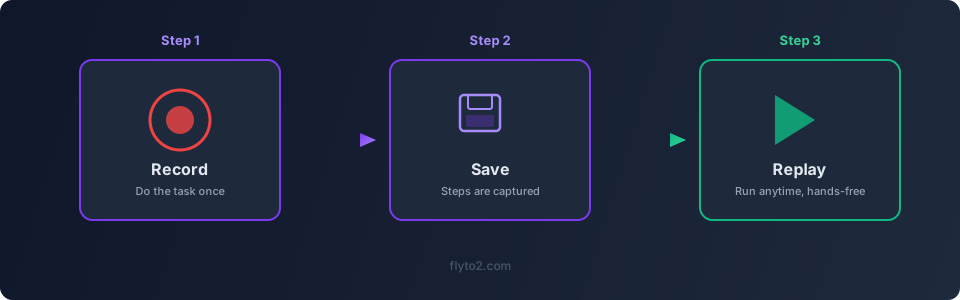
2. Describe the Steps
With Flyto2, you describe your task in plain language. For example:
"Log into our invoicing portal, go to the Reports section, download this month's sales report as a PDF, and save it to my Documents folder."
The AI agent breaks this down into individual browser actions — navigate, click, type, download — and builds a workflow.
3. Run and Review
The workflow runs in a real browser. You can watch it happen or let it run in the background. Flyto2 captures a screenshot at every step, so you can review exactly what happened.
4. Reuse Anytime
Once your workflow is set up, you can run it whenever you need it. Same task, zero effort.
Real-World Examples of No Code Browser Automation
Downloading Weekly Reports
A finance team downloads the same five reports from different platforms every Monday morning. Each report requires logging in, navigating to the right page, setting date filters, and clicking download.
With no code browser automation, all five reports are downloaded automatically. The team arrives on Monday to find everything ready in their shared folder.
Updating Multiple Listings
A property manager lists rentals on three different websites. Every time a price changes or a unit becomes available, they need to log into each site and update the listing manually.
An automated workflow handles all three updates at once. Change the information in one place, and the browser updates every listing for you.
Checking Order Status
An e-commerce business fulfills orders through a third-party service. The team checks the fulfillment portal multiple times a day to see which orders have shipped.
Instead of checking manually, a workflow visits the portal every hour, reads the latest status updates, and sends a summary to the team's chat channel.
Getting Started with Flyto2
Flyto2 is built for no code browser automation from the ground up. Here is what makes it practical for non-technical users:
Plain Language Instructions
You do not need to learn a scripting language or drag-and-drop interface. Just describe what you want the browser to do, and Flyto2 figures out the steps.
Smart Element Detection
One of the hardest parts of browser automation is telling the tool which button to click or which field to fill in. Flyto2 uses intelligent element detection — it understands the structure of web pages and finds the right elements automatically, even when websites change their layout.
Error Recovery
Websites are unpredictable. Pages load slowly, pop-ups appear, layouts change. Flyto2 handles these situations gracefully instead of crashing at the first unexpected element.
Full Audit Trail
Every action the browser takes is logged with timestamps and screenshots. This is especially important for business processes where you need to prove what happened and when.
Common Questions
Is it safe? Flyto2 runs a real browser on your machine. Your credentials stay local — nothing is sent to external servers. Every action is logged, so you have a complete record.
Can it handle two-factor authentication? For workflows that require human approval (like entering a verification code), the workflow can pause, wait for your input, and then continue.
What if the website changes? Flyto2's smart detection adapts to minor layout changes. If a website changes dramatically, the workflow will stop and notify you rather than taking the wrong action.
How is this different from browser extensions? Browser extensions typically handle simple, single-page tasks. Flyto2 manages complex, multi-step workflows that span multiple pages and websites, with error handling and evidence capture built in.
Try Flyto2
Stop spending your time on repetitive browser work. No code browser automation with Flyto2 lets you reclaim hours every week.
- Visit flyto2.com to get started
- Browse the documentation for walkthroughs
- Check out the open-source engine on GitHub