
Every day, you probably do the same things on your computer over and over. Downloading files, organizing folders, copying data, filling out forms. What if your computer could do those things by itself? That's what computer automation is all about.
This guide is for complete beginners. No programming experience needed. By the end, you'll understand what computer automation is, what it can do for you, and how to get started.
What Is Computer Automation?
Computer automation means teaching your computer to do repetitive tasks without your help. Instead of you clicking, typing, and dragging things around, you give the computer a set of instructions and it follows them — faster and without mistakes.
Think of it like setting an alarm clock. You tell the clock what time to ring, and it handles the rest. Computer automation works the same way, just for more complex tasks.
What Can You Automate?
Almost any task you do repeatedly on your computer can be automated. Here are some common examples:
Everyday File Tasks
- Organize your downloads folder — automatically sort files into subfolders by type (PDFs in one folder, images in another)
- Rename batches of files — change "IMG_4521.jpg" to "birthday-party-001.jpg" for hundreds of photos at once
- Back up important folders — copy files to a backup location on a schedule
Web Browsing Tasks
- Fill out online forms — enter the same information across multiple websites automatically
- Check for updates — monitor a web page and get notified when something changes
- Download content — save files, images, or data from websites without clicking through each one
Data Tasks
- Clean up spreadsheets — fix formatting, remove duplicates, standardize entries across thousands of rows
- Combine files — merge multiple CSVs or spreadsheets into one
- Convert formats — turn a batch of files from one format to another
Communication
- Send routine messages — automate regular status updates or notifications
- Generate reports — pull data together into a formatted report automatically
How Does Computer Automation Work?
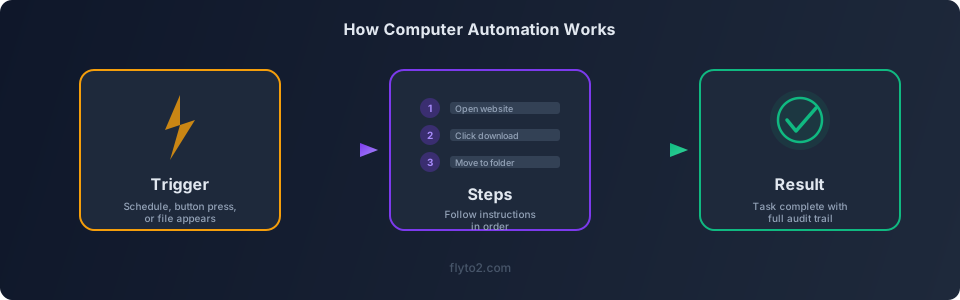
At its simplest, computer automation follows a three-step pattern:
- Trigger — something starts the automation (you press a button, a schedule fires, a file appears)
- Steps — the computer follows a list of instructions in order
- Result — the task is done, and you can review what happened
For example, an automation to organize your downloads folder might look like:
- Trigger: Run every evening at 6 PM
- Steps: Look at each file in Downloads. If it's a PDF, move it to Documents/PDFs. If it's an image, move it to Pictures. If it's a spreadsheet, move it to Documents/Spreadsheets.
- Result: Your downloads folder is clean every morning.
Getting Started with Computer Automation Using Flyto2
Flyto2 is a free automation tool that runs on your own computer. It comes with 467+ ready-to-use building blocks (called modules) that handle common tasks — opening web pages, moving files, processing data, and more.
Step 1: Install Flyto2
Open your terminal (Terminal on Mac, Command Prompt on Windows) and type:
pip install flyto-coreThat's the entire installation. No account creation, no payment, no lengthy setup wizard.
Step 2: Understand the Building Blocks
Flyto2 works with modules — small, focused tools that each do one thing. For example:
browser.goto— opens a web pagebrowser.click— clicks a button on a pagefile.move— moves a file from one place to anotherdata.read_csv— reads data from a spreadsheet file
You combine these modules into workflows — step-by-step instructions written in a simple format called YAML.
Step 3: Write Your First Workflow
Let's start with something practical. Say you want to take a screenshot of a web page every day — maybe to track how a competitor's homepage changes over time.
steps:
  - module: browser.goto
    params:
      url: "https://example.com"
  - module: browser.snapshot
    params:
      path: "./screenshots/example-{{date}}.png"
Two steps. Open the page, take a screenshot. The part automatically inserts today's date into the filename, so you get a new screenshot each day without overwriting the old one.
Step 4: Run It
Save your workflow to a file (like my-workflow.yaml) and run it. Flyto2 executes each step in order and shows you what happened.
Common Beginner Questions About Computer Automation
"Do I need to know how to code?"
No. Flyto2 workflows are written in YAML, which reads almost like plain English. If you can follow a recipe, you can write a workflow. For even simpler use, flyto-ai lets you describe tasks in everyday language and builds the workflow for you.
"Is it safe? Will it mess up my files?"
Computer automation does exactly what you tell it to — nothing more. Start with small tests (a few files, not your entire hard drive) until you're comfortable. Flyto2 also keeps an audit trail of every action, so you can always see exactly what it did.
"Does it work on my computer?"
Flyto2 runs on Mac, Windows, and Linux. It works locally on your machine, so your files and data stay private.
"What if something goes wrong during a run?"
Flyto2's deterministic execution means each step either succeeds or reports an error clearly. If step 3 of 10 fails, you'll know exactly which step failed and why. Nothing runs silently in the background doing unexpected things.
What to Automate First
If you're new to computer automation, start with a task that:
- You do at least once a week
- Takes more than 10 minutes each time
- Follows the same steps every time
Good first projects:
- Organizing your downloads folder
- Renaming a batch of files
- Taking a daily screenshot of a web page
- Converting files from one format to another
Once you see how much time your first automation saves, you'll start spotting opportunities everywhere.
Try Flyto2
Computer automation doesn't have to be complicated. Flyto2 gives you everything you need to start — 467+ modules, simple YAML workflows, and zero cost. Install it today, automate your first task, and see the difference for yourself.
- Get started: flyto2.com
- Read the docs: docs.flyto2.com
- Explore the source: github.com/flytohub/flyto-core