
Every day, millions of people spend hours repeating the same tasks on websites. Logging in, clicking through menus, copying data, downloading files — the same steps, over and over. What if your computer could do all of that for you?
That is what it means to automate website tasks. You set up the steps once, and your computer repeats them whenever you need — while you focus on work that actually requires your brain.
What Does It Mean to Automate a Website?
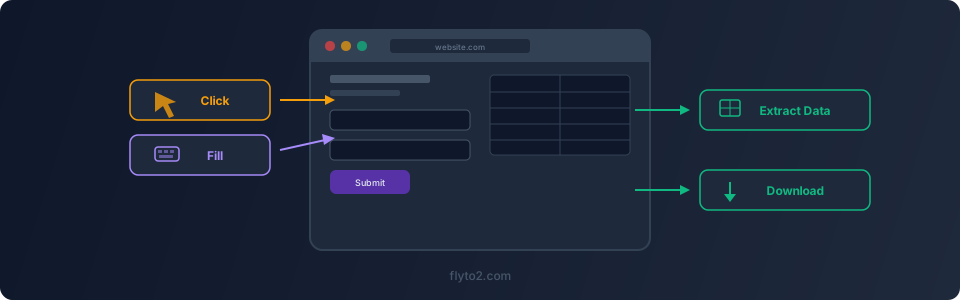
When people talk about automating a website, they usually mean one of these things:
- Filling out forms — Entering the same information into web forms repeatedly
- Clicking buttons and navigating pages — Moving through multi-step processes automatically
- Extracting data — Pulling information from web pages into spreadsheets or databases
- Logging in and performing routine tasks — Checking dashboards, downloading reports, updating records
- Monitoring changes — Watching for price changes, new listings, or status updates
The core idea is simple: if you do the same task on a website more than a few times, a computer can do it faster and more reliably.
Three Approaches to Automate Website Tasks
There are three main ways to automate website interactions, each with different trade-offs.
Approach 1: Write Code (Hard but Flexible)
Tools like Selenium and Playwright let developers write scripts that control a web browser programmatically. You write code in Python, JavaScript, or another language, and the script clicks buttons, types text, and reads page content.
Pros:
- Full control over every detail
- Can handle complex logic and edge cases
- Free and open source
Cons:
- Requires programming skills
- Brittle — selectors break when websites change their HTML
- Setup takes time (install language runtime, packages, browser drivers)
- Maintaining scripts is an ongoing effort
This approach works well for software teams that need precise, repeatable automation. For everyone else, it is more effort than the task is worth.
Approach 2: Browser Extensions (Easy but Limited)
Extensions like iMacros or browser-based macro recorders let you record clicks and keystrokes, then play them back. They run inside your existing browser as add-ons.
Pros:
- Easy to set up — install from the browser extension store
- No programming needed
- Record-and-replay is intuitive
Cons:
- Limited to what the extension API allows
- Cannot run in the background or on a schedule easily
- Break frequently when websites update
- Often cannot handle pop-ups, new tabs, or complex page interactions
- Data extraction capabilities are basic
Browser extensions are fine for simple, short tasks. But if you need to automate website workflows that span multiple pages, handle dynamic content, or run reliably over time, they fall short.
Approach 3: Dedicated Automation Tools (Best Balance)
Dedicated tools like Flyto2 are built specifically to automate website tasks. They use a real browser engine under the hood, but wrap it in a simple interface that does not require programming.
Pros:
- Real browser engine handles dynamic websites, JavaScript-heavy pages, and complex flows
- No coding required — write YAML or describe the task in plain English
- Runs on your desktop, no server needed
- AI assistance helps build and fix workflows
- Handles the full chain: browse, extract, save, notify
Cons:
- Learning a new tool (though the learning curve is short)
- Desktop app needs to be running during execution
For most people, a dedicated tool is the fastest path to reliably automate website tasks.
Step by Step: Automate a Website Task with Flyto2
Let us walk through a real example. Say you need to check a supplier's website every morning for updated pricing, and save the results to a file.
Step 1: Describe What You Want
Open Flyto2 and describe your task in plain English:
"Go to supplier.example.com, log in with my credentials, navigate to the pricing page, extract all product names and prices, and save them to a CSV file."
Flyto2's AI agent analyzes your request and generates a workflow.
Step 2: Review the Generated Workflow
The AI produces a YAML workflow that looks like this:
name: check_supplier_prices
steps:
  - browser.goto:
      url: https://supplier.example.com/login
  - browser.type:
      selector: "#email"
      text: "${EMAIL}"
  - browser.type:
      selector: "#password"
      text: "${PASSWORD}"
  - browser.click:
      selector: "#login-btn"
  - browser.goto:
      url: https://supplier.example.com/pricing
  - browser.extract:
      selector: ".product-row"
      fields:
        name: ".product-name"
        price: ".product-price"
  - file.write_csv:
      path: "./prices.csv"
      data: "${extracted}"
Each step is a plain-English instruction. You can read it, understand it, and modify it without programming knowledge.
Step 3: Run and Verify
Click run. Flyto2 opens a browser, performs each step, and saves the CSV file. You can watch the browser in real time to verify everything works correctly.
Step 4: Schedule It
Once the workflow works, set it to run on a schedule — every morning at 8 AM, for example. Flyto2 handles the rest.
Common Use Cases for Website Automation
Here are the most popular tasks people automate website interactions for:
Price Monitoring
Check competitor or supplier websites daily for price changes. Extract prices, compare them to yesterday's data, and get notified when something changes. This is one of the most common reasons people learn to automate website tasks.
Form Filling
Submit the same type of form across multiple websites. Job applications, vendor registrations, compliance forms — any repetitive form becomes a one-click task.
Report Downloads
Log into dashboards, set date ranges, click export buttons, rename files, and organize them into folders. Weekly reports that used to take 30 minutes now take 30 seconds.
Data Collection and Research
Gather information from multiple web pages into a single spreadsheet. Product specs, contact details, public records, job listings — if it is on a web page, you can extract it.
Account Management
Create, update, or audit accounts across multiple platforms. When a new team member joins, set up their accounts on every web portal your company uses — automatically.
Social Media and Content
Post updates, check analytics, download performance reports, and monitor mentions across platforms. Repetitive social media management tasks are perfect candidates for website automation.
Tips for Reliable Website Automation
After helping thousands of users automate website workflows, here are the lessons that come up most often:
1. Add Wait Steps for Dynamic Content
Modern websites load content dynamically with JavaScript. If your automation clicks a button before the page finishes loading, it will fail. Always include wait steps or use tools (like Flyto2) that handle this automatically.
2. Use Stable Selectors
If you are identifying elements on a page, use IDs and data attributes rather than CSS classes or position-based selectors. Classes change frequently when websites update their design. IDs are more stable. Flyto2's AI automatically picks the most stable selector available.
3. Handle Login Sessions
Many workflows start with a login step. Store credentials securely (Flyto2 supports environment variables), and build your workflow to handle both "already logged in" and "need to log in" scenarios.
4. Start Small and Build Up
Do not try to automate a 50-step workflow on your first attempt. Start with a simple 5-step task, verify it works, and then expand. Each piece you add should be tested before moving to the next.
5. Plan for Website Changes
Websites change their layout and HTML over time. The best automation tools adapt to minor changes automatically. Flyto2's AI-powered selectors are more resilient than hard-coded CSS paths, but you should still check your workflows periodically.
6. Respect Rate Limits and Terms of Service
When you automate website interactions, be respectful. Do not send hundreds of requests per second. Add reasonable delays between actions. Check the website's terms of service and robots.txt to understand what automated access is allowed.
Comparison: Website Automation Approaches
| Factor | Writing Code | Browser Extensions | Flyto2 |
|---|---|---|---|
| Setup time | Hours | Minutes | Minutes |
| Programming needed | Yes | No | No |
| Dynamic websites | Yes (with effort) | Limited | Yes |
| Runs in background | Yes | Limited | Yes |
| Scheduling | Manual (cron jobs) | Limited | Built-in |
| AI assistance | No | No | Yes |
| Maintenance effort | High | Medium | Low |
| Cost | Free | Free/Paid | Free |
| Data extraction | Full control | Basic | Advanced |
Getting Started
The fastest way to start automating website tasks is to pick one repetitive task you do this week and automate it. Do not overthink it. Choose something simple:
- Download a daily report from a dashboard
- Fill out a form you submit regularly
- Check a website for updated information
Once you see how much time one automated task saves, you will want to automate everything.
Try Flyto2
Flyto2 is a free, open-source tool built to automate website tasks without coding. Download it, describe your task, and let the AI agent handle the rest.
- Website: flyto2.com
- Documentation: docs.flyto2.com
- Source code: github.com/flytohub/flyto-core