
If you spend part of your day clicking the same buttons on the same websites, you already know it is a waste of time. Here is how to automate clicking on a website so your computer does the repetitive work while you focus on things that matter.
Why Automate Clicking on a Website?
Clicking sounds trivial — it is just pressing a mouse button. But when you add it up, those clicks consume hours.
Consider these everyday scenarios:
- Clicking "Approve" on dozens of requests in an admin panel
- Clicking through a checkout process to test that it works
- Clicking "Next" to page through search results while collecting data
- Clicking "Download" on multiple files from a document portal
- Clicking "Refresh" to check for updates on a dashboard
Each individual click takes a second. But doing it 50 or 100 times a day, five days a week, adds up to hours of lost productivity every month.
When you automate clicking on a website, you tell your computer to perform those clicks for you — in the right order, at the right time, without getting bored or making mistakes.
What Can You Automate?
Almost any clicking pattern that follows a consistent sequence can be automated:
- Single clicks — Pressing a button, selecting a menu item, opening a link
- Sequential clicks — A series of clicks that follow a specific order (click A, then B, then C)
- Conditional clicks — Click a button only if a certain condition is met (like a status showing "Ready")
- Repeated clicks — The same click pattern across multiple items in a list
- Click and type combinations — Click a field, type something, click the next field
How to Automate Clicking on a Website with Flyto2
Flyto2 makes it simple to automate clicking on a website. Here is how it works, step by step.
Step 1: Open Flyto2 and Describe Your Task
You do not need to memorize button names or learn CSS selectors. Just describe your task naturally:
"Go to our order management page, find all orders with status 'Pending Review,' and click the 'Approve' button next to each one."
Flyto2's AI agent understands what you want and creates a workflow with the right browser actions.
Step 2: The Browser Identifies the Right Elements
This is where most clicking tools fail — finding the correct button on a complex web page. Flyto2 scans the page and builds a map of every clickable element: buttons, links, checkboxes, dropdown menus, and more.
It uses smart detection that looks at:
- Button text and labels
- Position on the page
- Surrounding context
- Accessibility attributes
This means it clicks the right "Submit" button even if there are three "Submit" buttons on the page.
Step 3: Watch It Work
Flyto2 opens a real browser and starts clicking. You can watch the automation happen in real time. Every click is logged with a timestamp and a screenshot, so you have a complete record of what happened.
Step 4: Save and Reuse
Once your clicking workflow is set up, save it and run it whenever you need it. Tomorrow, next week, or on a schedule — the same clicks, perfectly executed every time.
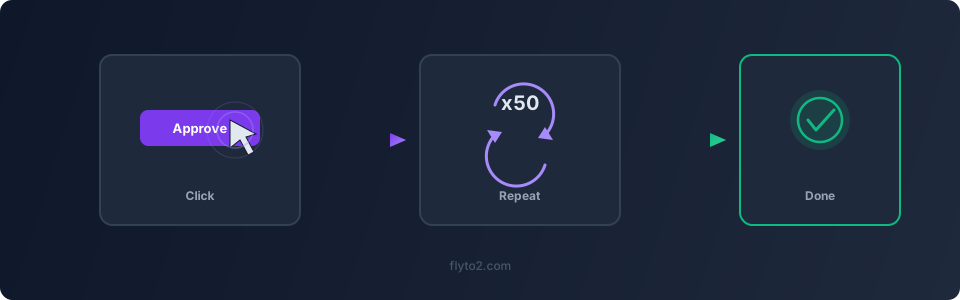
Practical Examples
Example 1: Approving Requests in Bulk
A team lead receives 30 to 40 leave requests through their company's HR portal each month. Each request requires opening the request, reviewing the details, and clicking "Approve" or "Reject."
With automated clicking, the workflow:
- Opens the HR portal
- Filters requests by "Pending"
- Opens each request
- Clicks "Approve" (for pre-approved categories)
- Moves to the next request
What took 45 minutes now takes 2 minutes of setup and runs on its own.
Example 2: Testing a Website
A QA tester needs to verify that every link on a website works correctly. Manually clicking through 200 pages is exhausting and error-prone.
An automated workflow clicks every navigation link, checks that the page loads, captures a screenshot, and moves on. The tester gets a complete report without clicking a single link.
Example 3: Collecting Data Across Pages
A researcher needs information spread across 50 pages of search results. Each page requires clicking "Next," waiting for the page to load, and copying the relevant data.
Automated clicking handles the navigation — click "Next," wait for the content, extract the data, repeat — while the researcher focuses on analyzing the results.
Tips for Reliable Click Automation
- Be specific about what to click — "Click the blue Submit button at the bottom of the form" works better than "click Submit"
- Account for loading time — Websites do not respond instantly. Good automation waits for the page to be ready before clicking
- Handle pop-ups — Cookie banners, notification prompts, and modal dialogs can block clicks. Flyto2 handles these automatically
- Test on one item first — Before running your workflow on 100 items, test it on one to make sure it clicks the right things
- Review the evidence — Flyto2 captures screenshots at every step. Check them to confirm the automation is working correctly
Why Flyto2 Works Better Than Scripts
Writing a script to automate clicking on a website requires programming knowledge, debugging skills, and ongoing maintenance. When the website changes, your script breaks.
Flyto2 takes a different approach:
- No coding — Describe tasks in plain language
- Real browser — Uses the same browser you would use, so websites behave normally
- Smart detection — Finds elements intelligently instead of relying on fragile selectors
- Evidence trail — Screenshots and logs at every step for accountability
- 400+ modules — Clicking is just the start. Combine it with typing, downloading, file operations, and notifications in a single workflow
Try Flyto2
Ready to stop clicking the same buttons every day? Let Flyto2 automate clicking on a website for you.
- Visit flyto2.com to get started
- Read the documentation for detailed guides
- Explore the open-source engine on GitHub